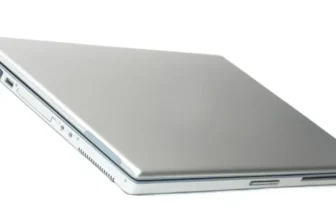

To maintain your laptop’s performance over time, it’s crucial to implement a few key strategies. Regularly cleaning up unnecessary files, optimizing startup programs, managing storage space efficiently, and updating software and drivers are all essential steps in ensuring your laptop runs smoothly. By following these practices, you can significantly extend the lifespan of your device and enhance its overall performance. But there’s one more often overlooked aspect that can make a significant difference – curious to know more?
Regular Cleanup and Maintenance
To maintain optimal performance, regularly clean and maintain your laptop by removing unnecessary files and performing updates. By clearing out unused files and programs, you can free up valuable storage space and help your laptop run more efficiently. Start by deleting temporary files, clearing your browser cache, and uninstalling programs you no longer use.
Regularly updating your operating system, drivers, and software is crucial for ensuring your laptop’s security and performance. Operating system updates often include important bug fixes and security patches that can enhance your laptop’s stability and protect it from cyber threats. Similarly, updating drivers can improve hardware compatibility and performance, while updating software ensures you have the latest features and enhancements.
In addition to cleaning up your files and staying up to date with software updates, consider organizing your files into folders and using cloud storage to free up even more space on your laptop. By following these maintenance tips, you can help prolong your laptop’s lifespan and keep it running smoothly for years to come.
Optimize Startup Programs
Consider optimizing your startup programs to improve your laptop’s performance and boot-up speed. When you start your laptop, various programs automatically launch in the background, which can slow down the boot-up process and consume system resources. By managing these startup programs, you can enhance your laptop’s overall efficiency.
To optimize your startup programs, access the Task Manager on Windows or the Activity Monitor on Mac. Look for the Startup tab or section where you can view the list of programs set to launch at startup. Disable unnecessary programs that you don’t use regularly or don’t need to run in the background constantly. This simple step can significantly reduce the time it takes for your laptop to boot up and free up resources for essential tasks.
Regularly reviewing and adjusting your startup programs can help maintain your laptop’s performance over time. By streamlining the startup process, you can ensure a faster boot-up speed and a more responsive system for your daily activities.
Manage Storage Space Efficiently
If you find your laptop running out of storage space, managing it efficiently can greatly improve its performance. Start by deleting unnecessary files and programs. Old downloads, temporary files, and unused applications take up valuable space and can slow down your laptop. Utilize disk cleanup tools or manually go through your files to free up storage.
Another way to manage storage space is by transferring large files to an external hard drive or cloud storage. This not only creates more room on your laptop but also allows you to access these files when needed. Organizing your files into folders can also help you locate items easily and prevent clutter.
Consider uninstalling programs that you no longer use. These applications still occupy space on your laptop even if you don’t actively use them. Additionally, regularly empty your recycle bin to ensure that deleted files are permanently removed from your system. By managing your storage space efficiently, you can maintain your laptop’s performance and prevent it from slowing down due to lack of space.
Update Software and Drivers
Make sure you regularly update the software and drivers on your laptop to maintain optimal performance. Keeping your software up to date ensures that you have the latest features, bug fixes, and security patches. Check for updates from the software manufacturer’s website or use built-in update tools for automatic downloads.
Updating drivers is equally important. Drivers are essential for hardware components to communicate with the operating system effectively. Outdated drivers can lead to compatibility issues, poor performance, and even system crashes. Visit the manufacturer’s website or use third-party driver update software to ensure all your drivers are current.
Regularly updating both software and drivers can enhance system stability, improve functionality, and boost overall performance. Set up automatic updates whenever possible to streamline the process and minimize the risk of missing crucial updates. By staying proactive with software and driver updates, you can extend the lifespan of your laptop and enjoy a smoother computing experience.
Trending Products




![HP Chromebook 11A G8 EE 29.5 cm [11.6] HD AMD A4 4 GB DDR4-SDRAM 16 GB eMMC W (Renewed)](https://m.media-amazon.com/images/I/41eveGYS9tL._SS300_.jpg)