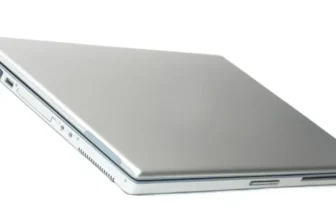

When it comes to running multiple applications on a laptop, the key to picking the best laptop for multitasking lies in finding the right balance between processor power, RAM capacity, storage type, and cooling efficiency.
You want a machine that can effortlessly juggle browser tabs, editing software, and background apps without breaking a sweat. So which laptops actually excel at this? There are a few specific specs worth checking before you buy — let’s break down exactly what to look for.
Processor Performance
When selecting a laptop for running multiple applications, prioritize a fast, multi-core processor to ensure smooth performance. The processor is the brain of your laptop, and it’s directly responsible for how well your system handles simultaneous tasks.
Look for laptops with quad-core or higher processors, since they distribute workloads across cores far more efficiently than dual-core chips. Higher clock speeds also help, as they let the CPU process instructions faster and reduce lag when several programs are open at once.
Opting for an Intel Core i5 or i7 processor, or an equivalent AMD Ryzen 5/7 chip, gives you the headroom needed for seamless multitasking across productivity software, browsers, and graphic design tools.
Chips with Turbo Boost or Precision Boost technology are especially useful, as they dynamically raise clock speeds when a resource-hungry application demands it. If you’re also considering a machine for gaming alongside your everyday workload, our guide to the best gaming laptops under $1,000 breaks down processors that hold up well under both gaming and heavy multitasking.
A fast processor works best when it’s paired with sufficient RAM and fast storage — without that combination, even a powerful CPU can bottleneck.
RAM Capacity
To complement a strong processor, the next thing to check is RAM capacity. Random Access Memory temporarily holds the data your processor needs quick access to, and every open application claims its own share. Too little RAM leads to sluggish performance, stuttering, and — in the worst cases — crashes when memory runs out.
For comfortable multitasking, 8GB of RAM is the bare minimum, and it’s really only suitable for light use — a browser, an office app, and maybe a chat client. If you regularly run several demanding programs together (photo or video editors, virtual machines, dozens of browser tabs), 16GB is the sweet spot, and 32GB gives you serious future-proofing if you plan to keep the laptop for years or work with heavier creative software.
RAM speed and type (DDR4 vs DDR5) also affect how efficiently your system swaps data between applications, so don’t overlook it when comparing specs.
If you split your time between a desk setup and working on the move, it’s also worth looking at a 2-in-1 laptop, since many current models now ship with 16GB as standard without sacrificing portability.
Storage Type and Speed
Storage type and speed matter just as much as RAM when you’re running multiple applications simultaneously. Whether it’s a Solid State Drive (SSD) or a Hard Disk Drive (HDD), this component determines how quickly your laptop can read and write the data each open application needs.
SSDs offer dramatically faster read/write speeds than HDDs, which translates into quicker app launches, faster file swaps between programs, and a noticeably more responsive system overall.
If you’re stuck with an HDD, pay attention to its RPM rating — a higher RPM generally means faster data access, though it still won’t match an SSD’s performance for multitasking-heavy workloads. Whenever possible, choose a laptop with an NVMe SSD rather than a SATA SSD or HDD; the difference shows up most when you’re switching rapidly between several open programs.
Cooling System
For consistent performance while running multiple applications, your laptop’s cooling system needs to dissipate heat effectively and prevent thermal throttling. When several CPU-intensive tasks run at once, internal temperatures climb quickly — and an inefficient cooling setup will force the processor to slow itself down to avoid overheating, undoing all the benefits of a fast CPU and plenty of RAM.
Look for laptops with efficient heat pipes, multiple fans, and well-designed airflow. Heat pipes move heat away from the CPU and GPU so fans can expel it, while dual-fan setups and strategically placed vents keep intake and exhaust airflow balanced. Keeping those vents and fans free of dust is just as important as the hardware itself — a poorly maintained cooling system will throttle performance no matter how good the laptop originally was. For more ways to keep your machine running at full speed for longer, see our tips on how to extend the life of your laptop.
Our Pick for Heavy Multitasking
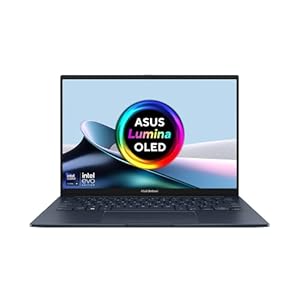
If you want a laptop that checks every box above — fast processor, generous RAM, and quick storage — the ASUS Zenbook 14 OLED UX3405CA is a strong option. It pairs an Intel Core Ultra 9 285H processor with 32GB of RAM and a 1TB PCIe Gen 4 SSD, giving it plenty of headroom for editing software, multiple virtual desktops, and dozens of browser tabs running at once — without the slowdown you’d get from a lower-spec machine.
Final Thoughts
Choosing the best laptop for running multiple applications really comes down to matching hardware to how you actually work. A quad-core (or better) processor keeps tasks moving smoothly, 16GB of RAM or more prevents the slowdown that comes from memory overload, an SSD keeps everything loading quickly, and a solid cooling system stops performance from dropping once things heat up. Get those four specs right, and you’ll have a laptop that can comfortably handle your browser, your editing software, and everything else you like to keep open — all at the same time.
Frequently Asked Questions
How much RAM do I actually need for multitasking? (A common Reddit question)
This comes up constantly on forums like r/laptops and r/SuggestALaptop, and the honest answer is: it depends on your workload. 8GB is fine for light use — browsing, documents, and streaming. For running several apps together, editing software, or keeping dozens of tabs open, most Redditors recommend 16GB as the realistic minimum, with 32GB suggested for heavier creative or development work.
Is an SSD really necessary, or can I get by with an HDD?
Yes — this is one of the most repeated pieces of advice in laptop-buying threads. An SSD (especially NVMe) drastically cuts down loading times and makes switching between open applications feel instant, whereas an HDD becomes a noticeable bottleneck the moment you start multitasking heavily.
Why does my laptop slow down or freeze when I have too many apps open?
This is usually a sign that RAM has run out and the system is relying on slower virtual memory (using storage as a stand-in for RAM), or that the CPU is thermal throttling due to poor cooling. Closing background processes helps temporarily, but the long-term fix is upgrading RAM or choosing a laptop with better cooling and more memory from the start.
Is Intel Core i5 enough, or should I go for i7?
A frequent debate in laptop subreddits. For everyday multitasking — office work, browsers, video calls — an i5 with enough RAM is usually sufficient. If you regularly run heavier software (video editing, large spreadsheets, multiple virtual machines) alongside everything else, the extra cores and clock speed of an i7 make a noticeable difference.
Can Chromebooks or budget laptops handle multiple applications well?
Budget laptops and Chromebooks can handle light multitasking — a handful of tabs and simple apps — but they typically ship with less RAM (4–8GB) and slower processors, so they struggle once you add several demanding programs at once. If multitasking is a priority, it’s worth spending a bit more for at least 16GB of RAM and a proper quad-core processor.
Does closing background apps actually improve multitasking performance?
Yes, to a point. Closing unused background apps frees up RAM immediately, which can noticeably reduce lag on machines with limited memory. However, it’s a workaround rather than a fix — if you find yourself closing apps constantly just to keep things running smoothly, that’s usually a sign your laptop doesn’t have enough RAM for how you actually use it.
Trending Products




![HP Chromebook 11A G8 EE 29.5 cm [11.6] HD AMD A4 4 GB DDR4-SDRAM 16 GB eMMC W (Renewed)](https://m.media-amazon.com/images/I/41eveGYS9tL._SS300_.jpg)